Convert a scanned PDF to Excel
Convert a scanned PDF to Excel by reading each page image into structured fields, spot-checking against the source, then exporting a UTF-8 BOM CSV Excel opens cleanly.
A scanned PDF is not really a spreadsheet hiding inside a file — it is a picture of a document. Each page is an image of rows, columns, and totals that look like a table to a human but are just pixels to a computer. That is why "export to Excel" buttons rarely exist for scans: there are no cells to export, only an image. To get real rows you have to read the page back into structured fields, then write those fields out as a file Excel can open.
That is exactly the workflow here. You take the document image (a scanned page, a phone photo, a faxed receipt), extract the values as named fields, and export a CSV that opens directly in Excel — UTF-8 with a byte-order mark, so Japanese, Korean, and Chinese text land in the right columns instead of turning into mojibake. The payoff to "convert scanned PDF to Excel" is that CSV.
Why a scan can't go straight to Excel
When you scan a paper invoice, the result is a raster image — the same kind of file as a JPEG photo. space-ocr accepts those raster formats directly: JPEG, PNG, GIF, BMP, TIFF, and WebP. If your source is a multi-page PDF, you have two paths: drop the PDF straight into the space-ocr app and it renders each page to an image for you automatically, or — if you're calling the REST API directly — export each page as an image first (PNG or TIFF) and send those. Either way, the OCR runs on page images.
The engine reads each image, finds the values, and gives every field a verified position on the page. Once the page is structured into fields, turning it into Excel is just a CSV download. The hard part — and the part worth getting right — is the read, not the export.
See it work before you trust it
Hover any field on the receipt below. The highlighted box is exactly where that value was read from on the page, and each value carries a match ratio telling you how much of it was actually located. This is a real parsed result, not a mockup.
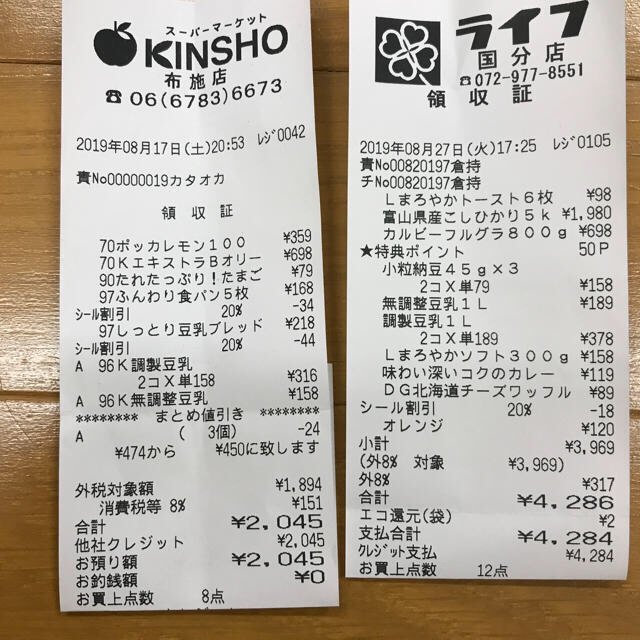
Every value carries a verified on-page location — bbox + 4-point vertices + match_ratio — on a 0–1000 normalized grid (0,0 top-left → 1000,1000 bottom-right), the same shape the live API returns. Hover a field to trace it back to the pixels it came from.
From document image to structured fields
Upload a document image — or just drop a photo or a PDF — and the values come out as named fields, not a wall of text. The fastest path is to let the app suggest the fields for you: drop the page and it proposes a schema automatically, with no setup and no template to pick. You can still apply a built-in template (receipt and business card are the one-tap presets; invoice, purchase order, delivery note and more are in the picker) or define your own fields. Watch a scan turn into labeled columns:
For documents with repeating rows — invoice line items, receipt products — declare an array field with child columns. Each line on the page becomes its own row, which is what you want when the spreadsheet has to add up. If you are wrangling those repeating rows specifically, see extract line items from invoices for the field-spec details.
{
  "image": "https://example.com/scanned-page-01.png",
  "imageType": "url",
  "fields": [
    { "name": "vendor", "type": "string" },
    { "name": "invoice_date", "type": "string" },
    { "name": "total", "type": "string" },
    {
      "name": "line_items", "type": "array",
      "children": [
        { "name": "description", "type": "string" },
        { "name": "unit_price", "type": "string" },
        { "name": "qty", "type": "string" }
      ]
    }
  ]
}The values come back verbatim. A printed 7,855 stays 7,855 — commas, decimals, and full-width characters are preserved exactly as on the page, so your totals reconcile. The currency symbol you see in the app is UI decoration, not part of the value. Numbers are normalized only when you explicitly ask for it in a field's description.
Spot-check, then export to Excel
Before you import anything into Excel, sanity-check the read. Hover a value and the source region lights up on the original image, so your eye goes straight to the spot instead of re-reading the whole scan. A match_ratio of 1.0 means every character was found on the page; anything below 0.85 is worth a second look.
Export the CSV that opens in Excel
When the fields look right, export the sheet. You get <sheetName>.csv with a header row of your column names; array fields expand into column.child columns and repeating line items unfold into sub-rows. The file is UTF-8 with a BOM, which is the specific detail that makes Excel open CJK text cleanly on double-click. Any manual corrections you made override the original OCR value in the export.
To open it in Excel: just double-click the .csv. Because of the BOM, Excel reads it as UTF-8 automatically — no Text Import Wizard, no garbled characters. From there, Save As → .xlsx if you need a native workbook. If your end goal is a plain CSV pipeline rather than Excel specifically, the companion guide on turning scanned documents into CSV covers the same export end to end.
Doing it at scale via the API
For a folder of scans, create a sheet with your column schema once, then upload page images to that sheet. Each image is read against that schema and appended as rows you can later export as one CSV. The full request/response shapes are in the API docs.
curl -X POST https://api.space-ocr.com/upload \
  -H "Authorization: Bearer $SPACE_OCR_API_KEY" \
  -F "path=/Invoices 2026" \
  -F "files=@scan-page-01.png" \
  -F "files=@scan-page-02.png" \
  -F "wait=true"
How to convert a scanned PDF to Excel
- Add your PDF or page imagesIn the space-ocr app, just drop the PDF — each page is rasterized to an image automatically, so there's nothing to convert. If you call the REST API directly, export each page as a raster image first, since the engine reads raster images (JPEG, PNG, GIF, BMP, TIFF, WebP), not PDF bytes.
- Read the page into fieldsExtract the values as named fields. The quickest way is to let the app auto-suggest the fields from the page; you can also apply a built-in template or define your own field spec. Declare an array field for repeating line items.
- Spot-check the valuesHover a field to highlight where it was read from on the original scan. A match ratio of 1.0 means every character was located; below 0.85 flags a value worth reviewing or correcting.
- Export the CSVExport the sheet to a CSV. It is UTF-8 with a BOM and expands array line items into sub-rows, with any manual corrections overriding the original OCR value.
- Open in ExcelDouble-click the CSV — Excel reads the BOM and opens your rows with columns aligned and CJK text intact. Save As .xlsx if you need a native workbook.
How do I convert a scanned PDF to Excel?
Can space-ocr read a PDF file directly?
Will the exported CSV open correctly in Excel with Japanese or Chinese text?
How do I handle invoice line items so they become separate rows?
How do I check the extraction was accurate before importing to Excel?
Turn your scans into spreadsheet rows
Free tier — 100 scans a month, no credit card. Read document images into fields and export a CSV that opens straight in Excel.